
Introduction
Welcome to the first Tech Report for the 2024-2025 school year. I am sharing a number of items in this report I hope you will find interesting or helpful. Those of you who are not familiar, I create these reports bi monthly and include information about current tech issues, need to know information, and analysis of tech tickets. Whether this is read as bathroom material or because you are interested, I hope it provides a worthy read.
ParentSquare
This summer we implemented ParentSquare as our parent communication service. ParentSquare allows for two way communication between parents, teachers, and students. The rosters from PowerSchool sync with ParentSquare, providing the most up to date information on students, parents, and classes. ParentSquare also sends attendance notices to parents who haven’t notified the office, allows for communication in extra curricular activities, and has a virtual phone service for teachers to use. Every week I am sending out a task for teachers to complete that will show them how to do something in ParentSquare. Additionally, online training was sent out to everyone to complete. During our first Virtual Learning Day, I will do a whole staff review of the basics of ParentSquare to ensure everyone is on the same page.
I have already seen a number of teachers making good use of ParentSquare through private messaging with Parents. I have seen some extra curricular activity groups post weekly newsletters and schedules. I hope as the year goes on we continue to make use of ParentSquare and all its features.
Google Classroom Non-Negotiables
This summer a number of staff got together and came up with a list of Google Classroom Non-Negotiables. This was based upon the Professional Development we did in May on Google Classroom. The goal of these non-negotiables is to streamline the online learning experience for our students. In the past teachers had to the freedom to use as much or as little of Google Classroom as they pleased. Some teachers posted everything in Google Classroom and made use of topics, while some only used the stream to post agendas and assignments. The way classes were named was also problematic as they were not following any common naming mechanism. This made is harder for students to navigate. Students should have the same experience when accessing their materials and not have to know different ways to access the curriculum dependent upon the teacher. This does not mean teachers cannot run their classes how they wish or do different activities. It means they must follow the non-negotiables and ensure all of their materials are organized by topics(including syllabus), agenda is posted on the stream, grades are entered in classroom, and the class is named properly. If a student misses a class, they should know what happened and be able to complete any missing work based on what is in Google Classroom. When all of this is done, it will create a much easier way for students to access. If teachers need help, they should work with their Department Heads or they can contact Ms. Kite, Mrs. Mis, or me.
Printers
Towards the end of last year we purchased new printers for each pod and the main offices. The new printers are made by Epson and are much more efficient than the Kyocera units we previously had. As before, the same process applies when needing more ink. Submit a support ticket when you notice you are getting low and I will place the order and place the toner in your mailbox. You should not need toner as often and in fact some of your teams are still using the sample cartridges that came with the printers still. Because these are more of a ink base and not a traditional toner, the shelf life is not as long and I will keep much less on hand. Usually orders come in within a day, so make sure you submit your ticket before you are out.
Sharp Boards
With all of the painting and the new furniture this summer, the Sharp Boards were turned off and moved into the hall on the last day of school. This was to prevent any damage from unplugging the board without turning off. I want to remind everyone to always TURN OFF THE BOARD AND COMPUTER before unplugging to move your board. It has happened numerous times over the last few years where someone moves their board without powering it off and the board touch screen stops working. We want these boards to work for a very long time and not have to be constantly replaced due to negligence. Please be aware of this when moving your board!
Screen Protectors
As with the start of every school year, teachers are asked to put screen protectors on iPads needing new ones. At the end of the year we remove the old ones that are no longer doing their job. I wanted to see the effect screen protectors had on claims since we implemented them. I decided to analyze the number of claims every year since I took over as Technology Director in 2014 and compare them. Some things to keep in mind: the number of claims does not count broken iPads found during collection. Some of these numbers would be inflated by at least ten claims if included.
Overview
This report provides a summary of iPad claims from the school years 2014-2015 to 2023-2024, analyzing trends, significant events, and the impact of initiatives like the screen protector program and virtual schooling.
Data Summary
| School Year | Number of Claims | Notes |
| 2014-2015 | 44 | |
| 2015-2016 | 53 | |
| 2016-2017 | 69 | *8th grade piloted screen protector program; only 2 breaks all year in 8th grade |
| 2017-2018 | 45 | **New iPads purchased; all iPads given screen protectors |
| 2018-2019 | 28 | |
| 2019-2020 | 21 | |
| 2020-2021 | 4 | New iPads purchased; school was virtual |
| 2021-2022 | 26 | |
| 2022-2023 | 32 | |
| 2023-2024 | 19 | New iPads purchased |
Key Observations
- Initial Increase in Claims (2014-2017):
- From 2014-2015 to 2016-2017, the number of claims increased steadily, peaking at 69 claims in 2016-2017. This year marked the pilot of the 8th-grade screen protector program, which saw a significant reduction in iPad breakage in the 8th grade, highlighting the potential effectiveness of the program.
- Impact of Screen Protector Program (2017-2018):
- The significant drop in claims to 45 in 2017-2018 coincides with the introduction of screen protectors for all iPads following the success of the pilot program.
- Steady Decline Post-2018:
- The number of claims continued to decline from 2018-2019 to 2020-2021, reaching a low of 4 claims during the 2020-2021 school year, likely due to virtual schooling during the COVID-19 pandemic.
- Post-Virtual Learning Adjustments (2021-2024):
- After returning to in-person learning, the number of claims increased but remained lower than pre-2017 levels, suggesting that the combination of new iPads and ongoing use of screen protectors has contributed to sustained lower rates of iPad damage.
Conclusions
The data indicates that the implementation of screen protectors significantly reduced iPad damage claims. The period of virtual schooling also contributed to a temporary reduction in claims. Even with the return to in-person learning, the number of claims has remained relatively low, likely due to the continued use of screen protectors and new iPad purchases.
Recommendations
- Continue the screen protector program for all new iPads to maintain low claim rates.
- Monitor claims in the upcoming years to assess if further interventions are necessary, especially as new technology is introduced.
- Analyze other factors that could influence claim rates, such as the age of the devices, user education, and maintenance practices.
Issues
Issue #1 Google Classroom Upload Issue from Google Drive
ISSUE: When attempting to load a file, doc, etc. from Google Drive into Google Classroom using the “upload with Google Classroom” feature, the screen turns white and freezes.
WORKAROUND:
Issue #2 – Google Classroom PDF Editor Not Working
KNOWN ISSUE: GOOGLE CLASSROOM PDF EDITOR 2024
ISSUE: When typing in the PDF editor from within Google Classroom, student work is deleting when pressing the spacebar on the iPadOS app.
WORKAROUNDS:
1. Try going through the browser and not the app. This may work as the issue appears to be iPad App related.
2. Upload the file into Google Drive. Link the file and give each user a copy. See if that makes editing work.
3. Have students download the file and not edit it within Google Classroom. If they press the square box with the arrow in the upper right hand corner while attempting to open, it will download the file. Students can then either open the file in google docs and edit it there (submitting the file as a google doc) or they can add comments to the areas they need to fill in.
It’s important if using number 3 students hit share and copy the link. They will then have to submit the assignment while adding the link as a private comment. See video linked on how this all is done.
https://drive.google.com/file/d/1a4BdB7MPc-ar0neMwq0Ujqas4m3XbVn9/view?usp=drivesdk
4. Do not use PDFs. App based PDF editors are notorious for being glitchy and not working. This has been the case every time there is an update to the Google Classroom app. While PDFs are great for sharing information, for worksheets, etc. it is probably better to use a google doc.
Issue #3 – Apple School Manager Sync Update
The second week of school Apple School Manager was not syncing properly with PowerSchool. When I logged in I was made aware of a new plugin with PowerSchool to take the place of the old one. Basically Apple School Manager pulls student, teacher, and class information and then that information is synced with the JAMF (Mobile Device Management) server to create Apple Classroom classes. The new plugin was not properly syncing no matter what I did and then I was able to get it to sync, except it removed all high school classes and students. Eventually the more I attempted to sync, the more information came through and worked. It now syncs nightly without issue, so I have no explanation for why it would not sync initially. I had a support call into the company who created the plugin, but by the time they called me (two days later) I had resolved the issue without their help.
Issue #4 – Tech Support Portal Down
On August 27th, the Tech Support portal stopped working. Users would get an error message stating they didn’t have permission when attempting to create a ticket. After two users reported the issue, I contacted FreshDesk support. They had to white list our domain as it was marked as spam and blocked. Within forty five minutes of filing the ticket the portal was back up and working.
Support Ticket Breakdown
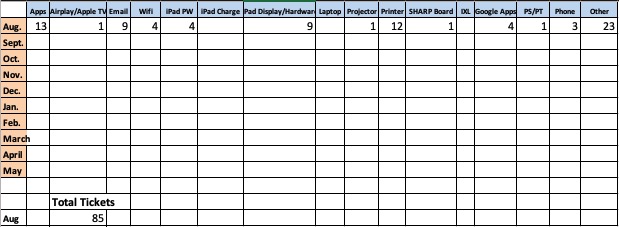
1. Overview of Tickets:
- Total Number of Tickets:
- A total of 85 tickets were processed.
- Ticket Status:
- Resolved: 67 tickets
- Closed: 16 tickets
- Pending: 2 tickets
2. Analysis of Ticket Sources:
- Portal: The majority of tickets (83 tickets) were submitted through the portal.
- Phone: A smaller number (2 tickets) were received via phone.
3. Ticket Types:
- Apps: 13 tickets related to app issues.
- Email: 9 tickets related to email issues.
- iPad Display/Hardware: 9 tickets.
- Other Categories: Issues also included Google Apps, Internet/Wifi, Printer, Projector, and SMART Board/SHARP Board problems.
4. Agent Performance:
- Ross Smith: Handled the majority of tickets (77 tickets).
- Stephanie Kite: Resolved 2 tickets.
- Mr. Kman: Resolved 2 tickets.
- No Agent: 4 tickets were marked without a specific agent.
5. Agent Interaction Analysis:
- Most Interactions: Ross Smith had significant interactions with customers, ranging from 1 to 7 interactions per ticket.
- Complex Cases: The highest number of interactions recorded for a single ticket was 7 (Ticket ID: 3217 – Kameron Reiter).
6. Customer Profiles:
- A mix of staff and students from various grades submitted tickets, with issues ranging from app problems to hardware malfunctions.
Conclusion: The report highlights the efficiency of Ross Smith in resolving a large volume of tickets. Most issues were related to apps and email, suggesting these are common areas where users require assistance. The data also indicates that most customers prefer to submit issues through the portal, demonstrating the platform’s importance in customer support.
Lost iPads
Broken iPads

Reminders
- Follow procedures for lost iPads, broken iPads, and support tickets. I have had a number of staff email me instead of using the support ticket portal. I have directed all to the portal. Also, do not send students to my office. I am not always there and if I am in the middle of something, they will be sent right back and told to have you fill out a support ticket.
- Screen protectors, replacement chargers, and deductible payments can be purchased from the Technology store on our website. This is located under the quick links.
- All staff should stay up to date on their Infosec training.