
Introduction
Welcome to the second semester of the school year. I have a lot of information to cover in this months Tech Report. There have been some questions and concerns regarding Apple Classroom, teacher rights with regards to student iPads, predictive text, and the App Store. I address these under Important Information below. Additionally, I address the issues we experienced in November and December and the usual Support Ticket Breakdown/Lost iPads/Broken iPads. Enjoy!
Important Information
Classroom and Classroom Management
As everyone should be aware, Apple Classroom is available to all teachers to help watch student devices during class time. Bluetooth must be turned on and your device must be updated to at least the same iPadOS version as the students. You can also use your MAC as long as it is not too far out of date. With this tool you can watch student screens, lock students into apps, or lock their device when they are not doing what they are supposed to. Lately I have heard a lot of grumbling about Apple Classroom and how it does not do enough. There are a couple things I would like to address about that thought. First, Apple Classroom is a free tool. We do not pay for it. Anything that you pay for should be able to do a lot more and should be able to work outside of school. Second, Apple Classroom is the most reliable option available for iOS and iPadOS. Apple does not allow access to their code for companies to create software capable of viewing iPads and controlling them like Google does with the Chromebook. This makes options extremely limited. I am looking into GoGuardian Teacher for iOS to see how it works and to see if it is possible to purchase without purchasing their web filter. We have a web filter and a long term contract. From my understanding of GoGuardian Teacher for iOS, it only works on the web browser and not on apps. Finally, the reliance on an app for classroom management shows a lack of classroom management to begin with. Too many teachers think if they have this app, they can sit behind their desk and just watch their computer screen. This is not how these sorts of apps should be utilized. Here are some tips I KNOW work with regard to classroom management:
- Teachers should be mobile in their classrooms. Walking around is the best way to prevent students from doing something wrong on their iPads. Students are less likely to try something if they know their teacher is walking around.
- Utilize both screens in your classroom. Airplay to one screen your Apple Classroom class with a view of their screens. Students will see they are on there and everyone can see if they do something wrong. Students will hold each other accountable if they see someone’s screen turn off or someone playing a game. I found this to be the best use of Apple Classroom as it lets the kids know you can see them and so can everyone else.
- If you have kids constantly playing games or doing things they shouldn’t be doing, it is time to re-examine your curriculum. Are you engaging with your students in a way that allows them to be creative, think critically, and problem solve? Are you doing projects or student centered activities? Or are you lecturing to students and expecting them to take notes the whole time? I’m not saying lecture isn’t important at times, but there are ways to make that more engaging or use it less often. Have you tried doing flipped classroom? You can use Edpuzzle. These are not tools only for virtual learning. When you flip your classroom, students do the lecture for homework through video and questions (edpuzzle makes it very easy). This opens up the class time itself for the actual activities or work. This opens up the ability to do more projects and more engaging things with your students!
- Teach “bell to bell.” Do not give students the opportunity to get off task by keeping them busy. Start your class off with a bellringer while you take attendance. Don’t just do one activity during the course of the class. Make students get up and move, interact and do things. Keep them busy until the class is over. Do not end class early.
Hopefully some of these tips will be helpful to you. They are things I found worked for me as a teacher. Do not just rely on Apple Classroom. It is a great tool, but it shouldn’t be your only tool.
What You Can and Cannot Do With Student Devices
It has come to my attention Teachers are not aware of what they can and cannot do with regard to student iPads when a student is suspected of doing something wrong. iPads are school devices. They are owned by the school. Students are using them for educational purposes. If a teacher suspects a student of cheating, playing games, doing anything wrong on that device, the teacher may take the iPad and search it. Students cannot deny you access to their iPad. Students cannot deny you access to their email. Whenever you have suspicion, grab the iPad and check. Students need to get used to this and it would resolve a number of issues. If students are aware their teachers can and will take the iPad and look through it, they will be less likely to do something wrong on there. There is no expectation of privacy when students are using our devices. If a student refuses to let you look at their device and you have already explained to him or her the device is owned by the school, you can do the following: notify me and I will lock the iPad. Send the student to Mr. Woghiren. Please let me know if you have any questions.
Predictive Text
Predictive Text is now disabled for 9th grade students. Predictive Text is a part of the iPad that offers suggestions for words as students type. Often students are using this and selecting words that make little to no sense without trying to type themselves. Mr. Chambers requested we turn this feature off so students can work on their writing and spelling skills. Students still have access to good old fashioned spell check. This feature may be turned off for Middle School as well, but I will need to have a conversation with Middle School English teachers and team leaders to determine if this is even an issue. More and more AI related functions will pop up in the future, so these discussions will take place more and more as we decide how we want to embrace the new technologies. AI is here to stay and blocking something instead of teaching students how to use it correctly is not the solution.
App Store
Recently I blocked Roblox from student iPads. This has angered many students and made a majority of teachers happy. This has also brought up further discussion about the App Store and what students should be allowed to do on their iPads. First and foremost, the iPad is an educational device and should be used for that purpose. Middle School students do not have access to the App Store. In High School, the App Store is opened up to students. This has been an issue for 9th grade students who cannot handle this benefit and therefore, next year, the App Store will most likely be blocked for 9th grade. The question is whether or not it will be unblocked after part of the year or used as a reward system for students doing well and not getting in trouble. I am open to discussions regarding this and will reach out to the teachers who will be teaching 9th grade next year to get their thoughts.
I also think we should look at how we can use Roblox and the App Store in general as a reward for kids who do not get in trouble, get good grades, and have good attendance. Currently, I can place students on academic probation and take away the app store. This is something we have done case by case, but not utilized on a major scale. While this is something we can do, I would much rather us start off strict and give rewards rather than take things away. We want to positively reinforce good behavior and not just punish bad behavior.
Issues
Screen Protectors
One of the most frustrating issues I have seen this year involves students taking off their screen protectors. The school provided each student with one free screen protector at the beginning of the school year. These screen protectors are important to protect the device from breaking. They should NOT be taken off for any reason unless it is completely shattered. We do sell replacements for $10. Any teacher who observes a student without a screen protector must inform the student he or she needs to purchase a replacement. The iPad Insurance policy requires a screen protector. Students who take their screen protector off when it is not shattered should receive a DAR. Several iPads without screen protectors have broken this year. In each case, the student explained they did not like a small bubble in the screen protector. This is not acceptable and too many teachers are not addressing it. Please help to protector these devices by holding students accountable.
Carelessness with Chargers and Keyboards
Another issue I am seeing with students involves carelessness with removing chargers and abuse of keyboards. Several students have broken their chargers by pulling them out roughly, usually sideways. Students should gently grab as close as they can to the charging port and pull the charger straight out. Additionally, several students have broken keyboards. I have found in a few cases the iPad had been taken out of the case or the keyboard part of the case had been pulled away from the iPad to the point the ribbon was ripped inside the flap. The keyboard cases are very nice, but need to be treated with respect. Please encourage your students to take care of their chargers and keyboards.
Access Point Movement
The issues with WiFi seem to have calmed down. Simply turning WiFi off then back on resolves the issue 90% of the time. The other 10% usually involves a device located between two access points. Apple Devices do not necessarily roam to the closest access point if they have a strong enough connection (70db) to another access point the device passed by or was connected to. This is inefficient, but a common problem with Apple Devices. Knowing the problem has made it easier to troubleshoot; however, in some cases I have needed to move some access points to make them “more attractive” to devices. I have found if the device connects to the closer access point first, it will stay connected as it will always have a stronger connection. As such, I moved the SPED access point to fix an issue where the SPED staff were connecting to Support Services often. I also moved Mr. Funchion’s Access Point since he kept connecting to the IT office instead. Both of these moves made it easier for these devices to stay connected and not experience any issues. Again, most devices can simply turn WiFi off and wait a few seconds, turn back on, and reconnect without issue.
Printer Issues
November and December consisted of a plethora of Printer problems. Pulse support was out several times a week to take a look at different printers. The rollers on the Kyocera printers seemed to be going out on almost all of them. Lines were being printed across all prints, sometimes in color, and sometimes in black. The 8th grade printer’s network cable had to be replaced as it would not connect to the Internet. Both printers in the main office had error messages and various issues. We have had the printers since 2018 and our contract is up in March. We will be replacing them and hopefully will not have as many issues.
BAS Computer Replaced
The computer Mr. Funchion uses to manage the boilers, heating and cooling of our building started to experience issues in November. The computer would freeze often and a message popped up stating the hard drive was failing and needed to be replaced. We attempted to clone the hard drive to a new drive, but the original drive was too corrupt and would not work. We contacted Automated Logic, the company that set up the computer and our whole system, and ordered a new computer. This computer was installed on January 22nd and runs much better than the old one. Hopefully we will not have any more issues for a long time.
Safe Visitor Program
The end of November/beginning of December, we set up the Safe Visitor Program in the main office. This software allows visitors to come into our school, have their state issued IDs scanned, and a quick background check done to ensure the individual is safe to be in the school. Once that is completed, we take a picture of the individual, and a sticker badge is printed off allowing them to access the building. The safety of our school is a top priority and this program is another way to keep our students safe.
New Stuff
Printers
We will be meeting with Pulse to coordinate the replacement of our printers (POD and Office). I have been disappointed with the Kyocera pod printers as they have frequently needed maintenance. The new POD printers will be Epson printers and should be much more efficient when it comes to toner and print speed. Additionally, we will not be using codes to log in like we do now with the Kyoceras. Staff will only be able to print to the specific printer they are assigned to. We will also be replacing the office printers with much more efficient units. Access to Office printers will be limited to role and area. We hope to have these installed by March.
Support Ticket Breakdown
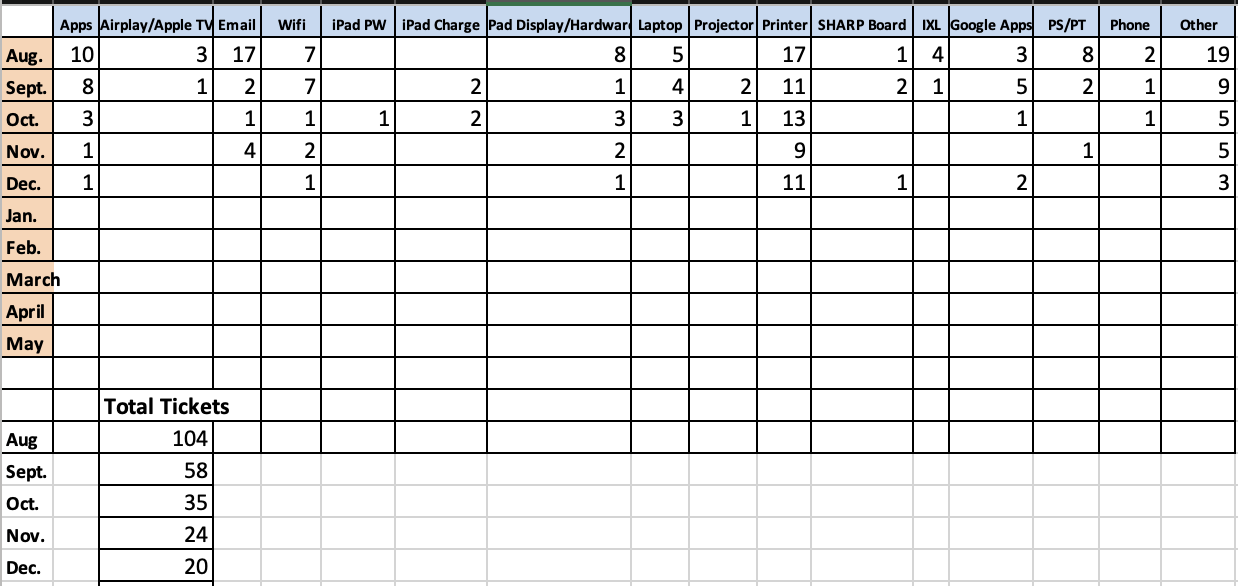
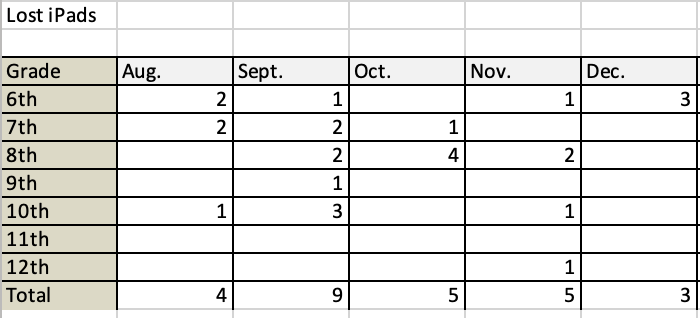
Lost iPads
Broken iPads

Reminders
- Follow procedures for lost iPads, broken iPads, and support tickets. I have had a number of staff email me instead of using the support ticket portal. I have directed all to the portal. Also, do not send students to my office. I am not always there and if I am in the middle of something, they will be sent right back and told to have you fill out a support ticket.
- Screen protectors, replacement chargers, and deductible payments can be purchased from the Technology store on our website. This is located under the quick links.
- All staff should stay up to date on their Infosec training.