
Introduction
Welcome to the 2nd tech report of the 2023-2024 school year. The busiest part of the school year has come and gone and traditionally this means things should be slowing down for me; however, I have been dealing with some of the same issues pretty much all school year.
Understanding WiFi vs Web Filter vs Internet
As I have been dealing with various wifi issues throughout the building this school year, people tend to assume if someone else is having an issue then their issue must be the same thing. This isn’t always the same and I wanted to talk about some of the differences between Wifi, the web filter, and the internet so you could understand what is wrong when an issue arrives.
The web filter is a cloud based profile on your device that blocks specific traffic based upon what is appropriate for school and what is not. The rules are mostly managed by settings I have set up in the Securly Console. Issues usually happen when trying to go to a website and it seems to stall out despite being connected to the WiFi. From what I have seen, this usually seems to happen when visiting Google sites. If you are able to access some sites and not google sites, it would be the web filter. If the issue lasts for less than a minute and then is fine, it’s most likely the web filter. If you have been in the same room for a while and you experience this, it is most likely the web filter. If you receive a message stating the website is blocked, this is the web filter. If you are stationary, experience a 30 second load on a website and then it works, this is the web filter.
WiFi is when you are wirelessly connected to the Internet through the Access Points in the building. It is possible to have issues with WiFi and not with the Internet. WiFi issues can occur even when the WiFi is working for most people in the room. This is due to roaming. There are times when devices stay connected to the previous room they were in. The reason for this is due to the threshold set on the device for how bad the signal has to get for it to switch to a new access point. This is why sometimes students will not have a connection or a very slow connection when they first come into a new classroom. The easy solution is to the turn the WiFi off then back on, on their device. This will force them to connect to the closest device. This issue is much more complicated on MacBooks as sometimes a device will want to stay connected to different access points. I discuss this more in the issues section, but the steps to remedy should be the same at first (turning wifi off then back on). Then there is the possibility that everyone is experiencing an issue in your room. Nobody can access any site or you have persistent issues where it works and then doesn’t. The light on the access point may turn from white to orange, or it may not. If this happens, I will have to investigate and possibly restart the access point in your room. It is possible for there to be a wifi issue where everyone in the building is not able to get on the WiFi. In this case I would need to see if I can connect to the network through a hard wired connection. Usually if everyone is down, it is not a WiFi issue. If half the building is down and half is up, it’s probably a WiFi issue.
Internet is what comes in from the outside and goes through the modem and router to the firewall and then to the switches. From there it goes to the access points. When there is an Internet issue, everything is the building will be out. All access points will be orange.
As you can see, there is a lot to try and decipher when there is an issue. I need as many details as possible including when it happens, how many are involved, if it’s happening more than once, and if it’s all websites or just one or google sites. Telling me about an issue several weeks after you started experiencing it does not help me troubleshoot. There is a definite roaming issue that happens, but that does not mean the “wifi sucks.” Knowing details will allow me to figure out a solution or to make adjustments as needed.
Printer Procedures
For the most part printer procedures are being followed. The issue I am seeing is people not putting their used toner in the bag that comes in the box of the new toner. This is to prevent a mess. I am in the process of trying to figure out what to do with the used toner and looking for a better system than just placing under my mailbox, so I will communicate that when I have a better system in place. For those unfamiliar, to submit a ticket for toner, please following the steps below:
Title 1 MacBook Cart
This year we purchased 15 new MaBook Airs for Title 1 to replace the old laptops. Unfortunately the new chargers that came with these laptops meant we could not use the setup of the MacBook cart. I purchased three power strips and attempted to connect the laptops using the three power strips hooked up to the power supply in the cart. This worked initially, but then the power supply failed. We purchased a smaller universal cart to hold these MacBooks and I assembled it the last week of October.
Charging
Something I have noticed quite a bit this year is how rough students are with disconnecting their chargers. I have had several support tickets where a student has said his or her ipad would not charge. In each case, the charger was damaged due to the student pulling the cable out and angled. Students should carefully remove the charger straight up from the charging port. Students are responsible for purchasing their own replacement chargers. We sell them in the technology store. If a student purchased on his or her own, the charger must be apple certified.
iPad Keyboards
This is a reminder if a Logitech iPad keyboard is not working on a student iPad, a hard reboot will fix the issue in 99.9% of instances. Hold the power button and the home button until you see the apple logo and then let go. This will resolve the issue regardless of what it is. If not, fill out a support ticket and I will take a look.
Issues
Issue #1 – WiFi Musical Chairs
As mentioned above, one of the biggest issues I have been dealing with this school year so far involves WiFi. It hasn’t been as simple as the WiFi being down, but rather intermittent issues that seem to jump around the building. As soon as I fix one, another one pops up. These issues seem to be more prominent than in previous years, despite upgrades to Internet speeds, switches, and cable runs. I have worked with network engineers and network support technicians through the vendor. Several issues were fixed in the process and then others popped up. Some issues are the same and have the same solution and others do not. Most issues involve roaming, when a device moves from one access point to another.
The year started with Mrs. Burton experiencing issues with her device connecting to Mrs. Projovic’s access point. This resulted in slower speeds as the access point was further away. She would lose connection randomly in the middle of the day. We tried many different things to fix the issue, but finally some settings recommended by the vendor engineer fixed the problem. Unfortunately, in the process of trying different things such as moving Mrs. Projovic’s access point, Mrs. Projovic started experiencing the same issues Mrs. Burton had. Ultimately, moving her access point a little bit in her room seemed to resolve the issue.
Mrs. Grecula also experienced some issues with her WiFi. She was connecting to different classrooms around her. After some troubleshooting, I found this happened whenever her device went to sleep from not being used. When it would reconnect, it would not default to the access point she had been connected to. I fixed her issue by Turning on “wake for network access” through the system settings on her Mac. This setting should be turned on, on every MacBook. You can find the directions on how to do this below:
There have also been some issues with students. This was first noticed during 9th grade NWEA testing. Students were connecting all over the place. This, again, is a roaming issue. Devices will stay connected to the previous access point they were on when a student moves as long as the signal is below a specific threshold. The solution is to turn the device off (which should be done before testing anyways) and turn it back on. Turning WiFi off then on can fix the issue, but when testing it is preferable to close out all apps and then restart. If students experience a brief interruption when moving to a new classroom, this usually indicates the device is still connected to the previous access point. Again, turning WiFi off then back on will fix the issue.
Finally, the Music room experienced some similar WiFi issues; however, none of the solutions worked. Mrs. Hartz would connect to the hallway access points or even the room next door. She would not connect to her own. To fix her issue, I temporarily ran a hard wired connection to her devices. Then, I swapped her access point for another one rarely used. This seems to have fixed her issue. The access point and her device for whatever reason did not like each other.
WiFi is very complex in a school environment. It is not like your homes. There are many parts. You can google Apple M1 chips and WiFi and will notice a number of reported issues and no clear solution. The majority of persistent issues involve MacBooks with M1 chips. iPads generally are fixed with turning WiFi off then back on again. Sometimes there can be signal overlap or there can be issues with the access point. It’s not something that can easily be fixed with one click of a button. Please keep this in mind if you experience issues. While it may be frustrating for you, I have been dealing with this all year long and as I fix one issue, another arises.
Issue #2 – Copper Alarm Line
The copper alarm line for our fire alarms has been cut by construction workers twice in the first couple months of school. In each instance AT&T had to come out and fix the lines. Copper lines are used less and less and the construction companies often find it safe to cut, at least that is what the AT&T Tech told me. We are going to replace the copper line with a cellular line soon.
Issue #3 – Office Apple TV
In August we moved the TV in the main office across from the main desk. After the move, the Apple TV began freezing often on the announcement slides. I tried erasing the Apple TV and still experienced the same issue. We purchased a new Apple TV and I set it up. After about a day, it began freezing just like the old one. I changed out the network cables going from the Apple TV to the port in the wall and from the patch panel to the switch. It froze again the next day. I turned off the auto timers on the TV in the office and that appears to have fixed the issue. I’m not sure why that would cause the freezing, but it did.
Issue #4 – TV 2nd Floor
This year we replaced the TV on the second floor with a new one. After about a week I noticed I was not able to connect to the to the Apple TV on the 2nd floor to airplay the announcements. I decided to check the cable in the ceiling and realized the network cable going to the Apple TV had been severed. This most likely happened when new cable was ran throughout the building in the summer. I ran new cable to the Apple TV and it works now without issue.
Issue #5 – Internet Outage 9/25
On the morning of September 25 the Internet in the building went out. This was the result of construction workers cutting our fiber line outside the building. The outage lasted the entire day. Unfortunately this is something that happens sometimes, especially with all the construction happening around the building. This happened once last year as well and once in 2020. Rarely is an Internet outage the result of something wrong in the building.
Issue #6 – PSAT Tech Setup
The PSAT testing was done online for the first time this past month. During the setup, College Board recommended doing a speed test they had on their website to determine testing capabilities. When I conducted the testing, we received ridiculously low numbers not consistent with any other speed test I have done. I contacted College Board support and they were not very helpful. They recommended all of the setup and troubleshooting I had already done before they escalated the case. I did not hear from them again for three weeks. I reached out to some area schools and they were also experiencing the same issue. I spent a lot of time trying to troubleshoot our network and look for ways to improve the speed. I put in a ticket with our Internet Service Provider to have them test our speeds. They found nothing wrong. The issue was on College Board’s end. After a couple weeks the numbers were much better. The day before testing, College Board sent an email out telling everyone not to use the speed test as it was not accurate. We tested and everything ran smoothly with no issues.
Tutorials
Ms. Kite and I did an Apple Classroom presentation in September. She did a Newsela presentation in October. The turnout was low, but we will continue to provide these presentations to staff as well as post tutorials we create for these various presentations.
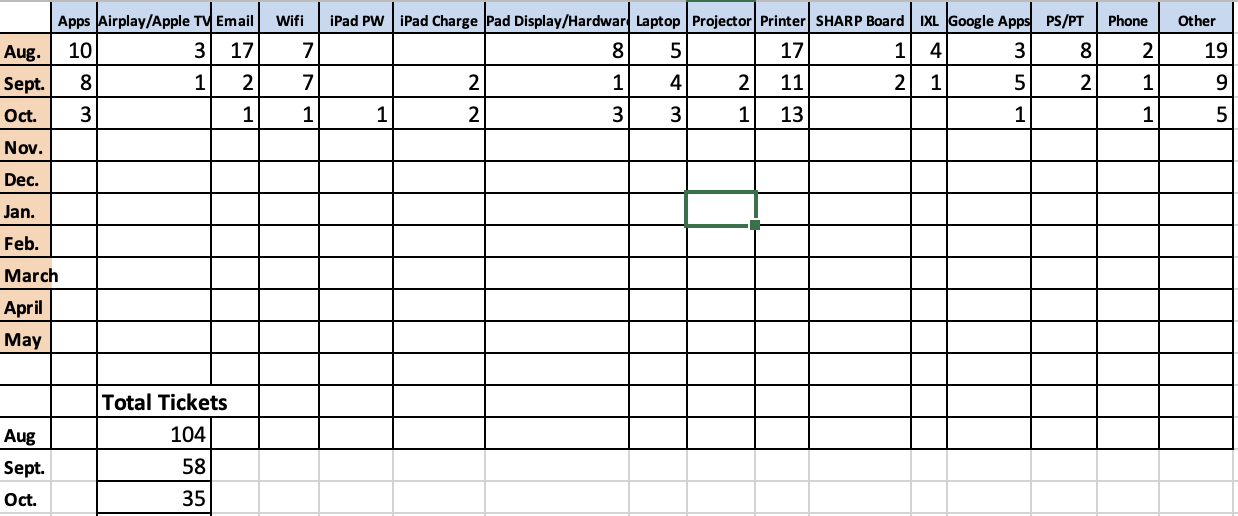
Support Ticket Breakdown
Lost/Stolen iPads

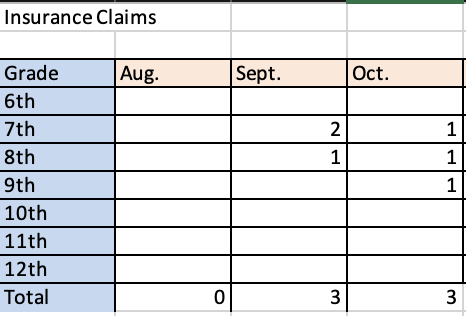
Broken iPads
Tech Reminders
- Follow procedures for lost iPads, broken iPads, and support tickets. I have had a number of staff email me instead of using the support ticket portal. I have directed all to the portal. Also, do not send students to my office. I am not always there and if I am in the middle of something, they will be sent right back and told to have you fill out a support ticket.
- Screen protectors, replacement chargers, and deductible payments can be purchased from the Technology store on our website. This is located under the quick links.
- All staff should stay up to date on their Infosec training.