
Introduction
Welcome to the Tech Report for November. It’s been another busy couple of months at HAST and below is some important information to share with you.
My School Bucks Roll Out
HAST went live with My School Bucks and parents on November 4th. Parents are able to pay their existing fees. My School Bucks can be accessed using the PowerSchool website. The PowerSchool App will not give you access to My School Bucks. If you have questions about fees, you can contact Mrs. Czmiel at [email protected] and if you have issues with logging in you can contact Mr. Kman at [email protected].
Securly Parent Home App
Now that My School Bucks has been rolled out to parents, I will soon be rolling out the Securly Parent Home App. We have tested this app with a few parents over the last year and it will be a nice way for parents to see what their children are doing at home and at school. This will assist in monitoring students as well as to look out for signs of trouble. I will send out communication before Thanksgiving to parents and they should receive an email asking them to download the app right after I upload rosters.
Network Updates/Future Network Updates
Over Fall Break I installed a new core switch with the help of a network engineer. This new switch serves as the top of our network topology, basically a gateway for all other switches to the Internet. Additionally, I reconfigured our switch connections using stacking cables. This creates a much more efficient network where not only are the speeds faster between switches, but if one switch goes down, the others will continue to work and communicate. While this definitely should improve network performance, it will not increase the speed of our network…yet.
Currently our Internet Speeds are 700 Mbps. This year we are looking to increase that bandwidth to compensate for the increase in daily bandwidth usage. I mentioned in an email earlier this year we are using over 90% of our bandwidth at points during the day. Once we increase our Internet speed, I am hopeful we can use a fiber connection between our router and the firewall, and then a fiber connection to our core switch. This will increase the capability of our network to send speeds up to 10 Gbps between each other. So if we increase our Internet speed to 2 Gbps, we will be able to send that much data through the switches. This doesn’t mean you will see 2 Gbps speeds throughout the building (there are a number of factors at play including length of cable run, web filter, etc.), but it will be much faster than current speeds. The changes I made should help us to move forward into the future and increase the efficiency, strength, and speed of our network.
WIDA Prep
This year the testing device requirements made a significant jump from last year. Our Mac testing computers need significant updates in order to accommodate the device requirements. Last year I updated these MacBooks and experienced a number of issues where devices did not survive the update process. Considering the devices are 2015 models and will not be replaced with newer ones anytime soon, I made the decision to utilize iPads once again for WIDA testing. iPads are a much more viable option for future testing as well since they are easier to update, easier to manage, and I have more available for testing. Last week I set up all devices for WIDA as well as a new caching server. Hopefully we will have a smooth experience utilizing iPads this year!
Projector Maintenance
After Thanksgiving I will begin cleaning the filters in your projectors using compressed air. This process takes a couple minutes and should not interrupt your class. I used to do this monthly, but it has not been done in a while. This is important for maintaining the longevity of our projectors.
Tech Issues
Issue #1 – Intermittent Wifi Issues
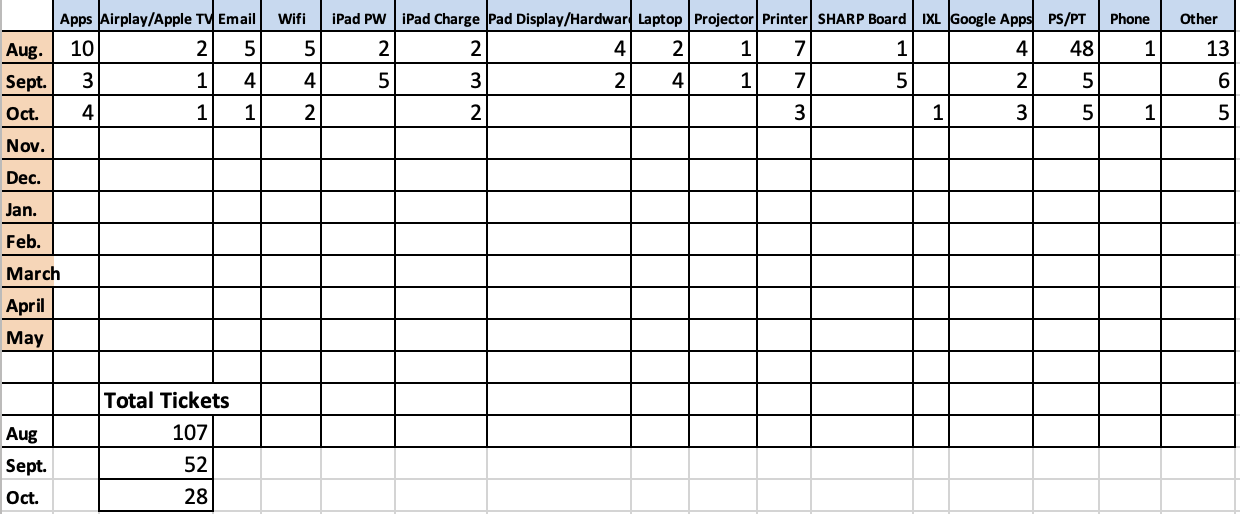
The Intermittent Wifi issues continued into October. Some were related to Securly or profiles, some were related to Access points, but in every instance it was affecting teachers in the classroom. The network involves a number of different components and at any given time, there could be the same issue with a different solution. In one instance, a teacher kept getting disconnected from her wifi throughout the day to the point she was unable to use her laptop. Her iPad and Sharp Board had no issue. My immediate thoughts were it had to be related to Securly and the profile on her laptop. After deleting and then reinstalling the profile, the issue remained. I checked her device on our network and saw it was connecting to the room above hers on the second floor! This should not happen. I had to make her Access Point more attractive to her device. I turned on her second radio on the AP and her device began connecting and staying connected. In another instance, I found a teachers Access Point was using the same channel as the one next door. This caused the teacher to lose connection often.
When a teacher has an issue with his or her wifi, I advise they check the following before filling out a support ticket:
- Ensure connected to Google.
- Ensure you have a wifi radio signal on the top of your laptop.
- Turn your wifi radio off then back on again.
- Restart Device
If none of those help, then please fill out a ticket and I will investigate further. As I mentioned, this issue continued and the solution was not the same for any of the devices experiencing problems.
Issue #2 – Students Using Wrong Chargers
Over the past two weeks I have received a number of support tickets from students claiming their iPads were not charging. In each of those instances, students were using an iPhone charging block instead of an iPad charging block. iPhone blocks are 5w versus iPad blocks, which are 12w. When a smaller, less powerful charging block is used, the battery is not charged fully. When the iPad receives a smaller charge consistently, the battery depletes and gets used to receiving a smaller charge. The battery memory assumes this smaller charge is correct and adjusts its percentage. Eventually the battery will no longer charge because it is not getting enough juice. Students see their iPad drop from 100% to 80% much quicker and then will sometimes die before ever getting to 50%. Students often believe because they are using a lightening cable, it doesn’t matter what type of block is used. This is not the case. It is also worth noting our Insurance Policy does not cover the use of the wrong charger. This means if a student damages his or her iPad by using the wrong charger, it will not be covered a student will need to pay for a new iPad. Please ensure students are using the correct charger by reminding them often and ensuring they are NOT using iPhone chargers at school. Students can search amazon for an Apple Certified charger or they can purchase them from our technology store.
Issue #3 – Devices not Communicating with MDM
In the September Tech Report I reported there were several staff devices needing to be wiped and reconfigured due to a new server certificate these devices never received. In October I worked on ensuring this was taken care for staff. As of this writing, there are still four staff members who need to get their iPads to me so I can wipe them and reconfigure. I also discovered there were about 20 students who had a similar problem in needed to be wiped and reconfigured. There were also over 70 iPads not updated to iOS 15. This was the result of these particular students not wiping their iPads before turning them in. This was a part of the collection procedures to be checked by their teachers. This is a big reason why I prefer not to do iPad collection on the last day of school. Thankfully, all student iPads have been taken care.
Issue #4 – Device Updates
As mentioned above, there were over 70 iPads not updated to iOS 15 at the end of last year. These were taken care of in October. Thank you to the team leaders who helped ensure students updated their devices. iOS 16 has come out, but is not available to students yet. I prefer not to make it available immediately so bugs can be worked out and so there are no glitches or issues with state testing. Mac OS Ventura came out a couple weeks ago. Mr. Kman updated his laptop and found it got rid of his printer settings. While the fix was simple, it would be best for staff to hold out on updating their laptops at this time for this reason and to ensure Apple works out the bugs always present in new releases.
Issue #5 – Printer Issues
The last two months have been filled with a number of different printer issues throughout the school. This is to be expected since the printers are reaching the end of their lease. I believe next year we will be starting a new lease with newer devices. As always, fill out a support ticket for any Printer issues and I will contact Pulse support to have them come out.
Issue #6 – Procedures Not Being Followed
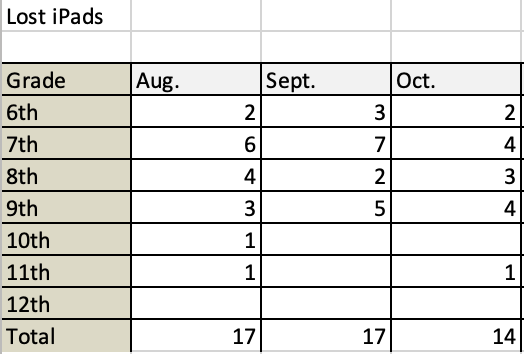
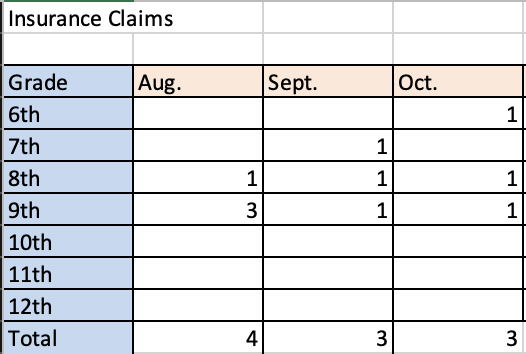
I don’t normally like to write these things in my tech report because I typically address these issues with the individuals directly; however, the last two months there have been a number of instances where procedures have not been followed by teachers. Much can be attributed to the number of new staff we have in the building, but some of the individuals are veteran staff. I encourage every teacher and staff member to review the Tech Policies and Procedures on this site. Everything is here and written out to make it as simple as possible. When a student has a tech issue, please DO NOT send them to my office. Fill out a support ticket. This notifies me on my email and through push notification to my phone of a tech issue. I am not always in my office. Often I am in the middle of something that cannot be interrupted. I want my focus to be on the support ticket and not on something else. If I reply to the ticket and ask for the student to be sent down, then that is fine. If a student has a broken iPad, fill out the insurance claim form with the student and then place the iPad in my mailbox. There have been too many instances where students are keeping their broken iPads. This often slows down the insurance process as students see no incentive to pay immediately for replacement and can also be a safety issue if the screen is broken. We are getting much better as a staff with lost iPad procedures; however, often students are not retracing their steps. This is a key part of the procedure as students often leave their iPads the last place they were at. Those of you who have known me know I like things done a particular way and procedures followed. This creates the most efficient resolution to all tech problems. Please help by reviewing procedures and following them.
Support Ticket Breakdown
Lost/Stolen iPads
Broken iPads
Reminders
- Please remember to fill out support tickets for support issues.
- Take care of your devices.
- Please make sure your devices are charged with the correct charging block.
- Visit HAST Tech Store for chargers, screen protectors, and to pay iPad deductible online <==My School Bucks Store will open soon and this one will be shut down